In this series we build a complete platformer in plain JavaScript and the HTML5 canvas: no engine, no libraries, one file you can open with a double click. The hero runs by himself, a swipe turns him around and a button makes him jump, the same control scheme as the auto-running platformers on phones. Part 1 sets up the canvas so it looks sharp on any screen, writes the game loop, and puts our hero on the ground.
A new part comes out every Monday. Each one ends with a playable demo and the full code up to that point, so you can start from any part.
What we are going to build
An auto-runner is usually a straight line: run, jump, don't fall. Being able to turn around changes that. A level can hide things behind you, ask you to go back for a key, or put a wall in your way that you only get past by turning. That is the kind of game we are building:
- Running and falling: gravity and collisions against the blocks of the level.
- Controls: a jump button, a swipe to change direction, and the keyboard on a computer.
- The level and the camera: a map written as text, coins, and a camera that looks ahead.
- Winning and losing: pits, spikes, a goal flag. That is the first complete level.
- Enemies: two characters that walk the level, and the full story of collision boxes.
- Doors and a coin room: doors that take you to another place in the map, and a secret room.
The graphics are colored rectangles on purpose: everything we learn is about how the game behaves, and rectangles keep the code about that.
Meet Cubi
Our hero is Cubi, a green cube with sneakers. He is a single SVG frame, written right inside the code: no image files to download, no animation sheets. He measures exactly one tile, 32 by 32, and that is not a coincidence. In a game, what you see and what collides are two different things: the drawing, and an invisible box the physics uses. For Cubi both are the same square, which makes the first lessons simple: the dashed line in the picture is his collision box, and it fits him exactly.
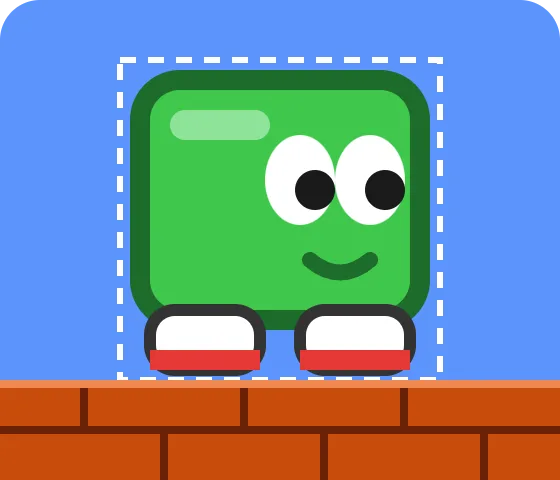
It is almost never like that: a round enemy, or one with spikes, needs a box that does not match its drawing, and adjusting it takes a bit of math. We will see that properly in the part about enemies.
Step 1: the page
Everything lives in one HTML file. The page is black, the canvas sits in the middle, and touch-action: none tells the browser that a finger on the canvas belongs to the game: without it, a swipe would scroll the page or zoom in instead of reaching our code.
<!DOCTYPE html>
<html lang="en">
<head>
<meta charset="utf-8">
<meta name="viewport" content="width=device-width, initial-scale=1">
<title>My platformer</title>
<style>
  html, body { margin: 0; height: 100%; background: #000; }
  body { display: flex; align-items: center; justify-content: center; overflow: hidden; }
  canvas { display: block; touch-action: none; }
</style>
</head>
<body>
<canvas id="game"></canvas>
<script>
  // Everything in this series goes here.
</script>
</body>
</html>
Step 2: a world of fixed size
The first decision is the most important one: the game does not think in screen pixels. It thinks in a world of 16 by 9 tiles of 32 pixels, 512 by 288, always. A phone, a monitor or a small frame inside a web page only decide how big that world is drawn. That way a jump goes just as high on every device, and the level designer can count in tiles.
// The game thinks in a fixed world of 16 x 9 tiles.
const TILE = 32;
const VIEW_W = 16 * TILE;   // 512
const VIEW_H = 9 * TILE;    // 288
const STEP = 1 / 60;        // one physics step: 1/60 of a second

const SKY = '#5c94fc';
const BRICK = '#c84c0c';
const MORTAR = '#6b2205';
const BRICK_LIGHT = '#f08850';
Sky blue and brick red: the classic colors of the genre, so the game never gets mixed up with the page around it.
Step 3: a sharp canvas on any screen
A canvas has two sizes, and mixing them up is the most common reason a canvas game looks blurry. The CSS size says how big it looks on the page. The buffer size, canvas.width and canvas.height, says how many real pixels it has. A phone has about three physical pixels for each CSS pixel (devicePixelRatio), so a buffer the size of the CSS box gets stretched three times.
The fix is to make the buffer bigger by that ratio, and then use setTransform so that we keep drawing in our 512 by 288 world while the browser fills every real pixel:
const canvas = document.getElementById('game');
const ctx = canvas.getContext('2d');

function resize() {
  const dpr = window.devicePixelRatio || 1;
  // The biggest size that fits without changing the 16:9 shape.
  const scale = Math.min(window.innerWidth / VIEW_W, window.innerHeight / VIEW_H);
  const cssW = Math.floor(VIEW_W * scale);
  const cssH = Math.floor(VIEW_H * scale);
  // How big it LOOKS on the page.
  canvas.style.width = cssW + 'px';
  canvas.style.height = cssH + 'px';
  // How many REAL pixels it has: sharp on a phone too.
  canvas.width = Math.floor(cssW * dpr);
  canvas.height = Math.floor(cssH * dpr);
  // From here on we draw in world units (512 x 288).
  ctx.setTransform(canvas.width / VIEW_W, 0, 0, canvas.height / VIEW_H, 0, 0);
}
window.addEventListener('resize', resize);
resize();
We call resize() once at the start and again every time the window changes, for example when you rotate the phone.
Step 4: loading Cubi
The SVG is a text string inside the code. To draw it on a canvas we turn it into an image with a data: URL. decode() returns a promise that resolves when the image is ready, so the game never tries to draw something that has not loaded yet.
const CUBI_SVG = `<svg xmlns="http://www.w3.org/2000/svg" viewBox="0 0 32 32" width="64" height="64">
  <rect x="2" y="2" width="28" height="24" rx="4" fill="#3ec74b" stroke="#1d6b2a" stroke-width="2"/>
  <rect x="5" y="5" width="10" height="3" rx="1.5" fill="#8fe39a"/>
  <ellipse cx="18" cy="12" rx="3.5" ry="4.5" fill="#fff"/>
  <ellipse cx="25" cy="12" rx="3.5" ry="4.5" fill="#fff"/>
  <circle cx="19.5" cy="13" r="2" fill="#1a1a1a"/>
  <circle cx="26.5" cy="13" r="2" fill="#1a1a1a"/>
  <path d="M19 20 q3 2.5 6 0" fill="none" stroke="#1d6b2a" stroke-width="1.6" stroke-linecap="round"/>
  <rect x="3" y="25" width="11" height="6" rx="2.5" fill="#fff" stroke="#333" stroke-width="1.2"/>
  <rect x="18" y="25" width="11" height="6" rx="2.5" fill="#fff" stroke="#333" stroke-width="1.2"/>
  <rect x="3" y="29" width="11" height="2" fill="#e53935"/>
  <rect x="18" y="29" width="11" height="2" fill="#e53935"/>
</svg>`;

function loadImage(svg) {
  const img = new Image();
  img.src = 'data:image/svg+xml,' + encodeURIComponent(svg);
  // decode() waits until the image can be drawn without a hiccup.
  return img.decode().then(() => img);
}
Step 5: the state of the game
The ground is two rows of bricks, and there are a few floating blocks to give the scene some shape. Cubi is an object with a position, a size, a speed and a direction. Note the unit of the speed: pixels per second. If we moved him a fixed number of pixels per frame, he would run more than twice as fast on a 144 Hz monitor as on a 60 Hz phone.
const GROUND_ROW = 7;
const FLOATING = [[4, 4], [5, 4], [6, 4], [11, 3], [12, 3]];   // [column, row]

const player = {
  x: 0,
  y: GROUND_ROW * TILE - TILE,   // standing on the ground
  w: TILE,
  h: TILE,
  speed: 120,                    // pixels per SECOND, not per frame
  dir: 1,                        // 1 right, -1 left
  sprite: null,
};

function update(dt) {
  player.x += player.speed * player.dir * dt;
  // For now Cubi leaves on one side and comes back on the other.
  if (player.x > VIEW_W) player.x = -player.w;
  if (player.x < -player.w) player.x = VIEW_W;
}
update(dt) moves the world forward by dt seconds. For now it only moves Cubi; in the next parts it will hold gravity, collisions and everything else.
Step 6: drawing
Every frame is painted from scratch, back to front: sky, blocks, and Cubi on top. A brick is a red rectangle with a few darker lines for the joints. To make Cubi face left we do not need a second drawing: we mirror the canvas around his center with scale(-1, 1), between save() and restore() so the mirror only applies to him.
function drawBrick(col, row) {
  const x = col * TILE;
  const y = row * TILE;
  const half = TILE / 2;
  ctx.fillStyle = BRICK;
  ctx.fillRect(x, y, TILE, TILE);
  // The joints: two rows of bricks, the second one shifted half a brick.
  ctx.fillStyle = MORTAR;
  ctx.fillRect(x, y + half - 1, TILE, 2);
  ctx.fillRect(x, y + TILE - 2, TILE, 2);
  ctx.fillRect(x + half - 1, y, 2, half);
  ctx.fillRect(x, y + half, 2, half);
  ctx.fillStyle = BRICK_LIGHT;
  ctx.fillRect(x, y, TILE, 2);
}

function drawPlayer() {
  ctx.save();
  if (player.dir < 0) {
    // Facing left: mirror the drawing around Cubi's own center.
    ctx.translate(player.x + player.w / 2, 0);
    ctx.scale(-1, 1);
    ctx.translate(-(player.x + player.w / 2), 0);
  }
  ctx.drawImage(player.sprite, Math.round(player.x), Math.round(player.y), player.w, player.h);
  ctx.restore();
}

function draw() {
  ctx.fillStyle = SKY;
  ctx.fillRect(0, 0, VIEW_W, VIEW_H);
  for (let col = 0; col < VIEW_W / TILE; col++) {
    drawBrick(col, GROUND_ROW);
    drawBrick(col, GROUND_ROW + 1);
  }
  for (const [col, row] of FLOATING) drawBrick(col, row);
  drawPlayer();
}
Step 7: the game loop, with a fixed step
requestAnimationFrame calls our function once for every screen refresh, and passes the current time. The time between two calls is not constant: 16.7 ms on one screen, 6.9 ms on another, and much more if the phone gets busy for a moment.
Moving things by the elapsed time is enough for Cubi today, but physics gets unpredictable when that time changes from frame to frame: a long frame can make him go through a thin wall. That is why we use a fixed step. The elapsed time goes into an accumulator, and update() runs in slices of exactly 1/60 of a second, as many as fit. Drawing still happens once per frame.
let last = 0;
let acc = 0;

function frame(now) {
  // Seconds since the last frame, capped at 0.25.
  const elapsed = Math.min((now - last) / 1000, 0.25);
  last = now;
  acc += elapsed;
  // Physics always advances in slices of exactly STEP.
  while (acc >= STEP) {
    update(STEP);
    acc -= STEP;
  }
  draw();
  requestAnimationFrame(frame);
}

// Load first, then run.
loadImage(CUBI_SVG).then((img) => {
  player.sprite = img;
  requestAnimationFrame((now) => {
    last = now;
    requestAnimationFrame(frame);
  });
});
The cap of 0.25 seconds matters more than it looks: if you switch tabs and come back a minute later, the browser reports a minute of elapsed time, and without the cap the game would try to simulate it all at once.
Try it
This is the result of part 1: Cubi runs at a steady speed and comes back around the screen. On a phone, use the button in the corner to go full screen.
The file you download is the complete game up to this point, with its comments in English, Spanish and Portuguese. Open it with your browser and change things: the speed, the colors, the position of the blocks.
Next Monday: running and falling
In part 2 Cubi gets gravity, and the blocks stop being decoration: we will write collisions between boxes, resolving one axis at a time, so he can stand on platforms and bump into walls. If you like games made this way, you can play the ones we make at Raptware on our games page.
Comments
Sign in with your Raptware account to leave a comment.
Personal details
Sorry, this site is made for kids and adults alike, so we can't allow sharing personal details. Thank you for understanding, and for your comments!